
Web Server API
ESPHome includes a built-in web server that can be used to view states and send commands. In addition to the web-frontend available under the root index of the web server, there’s also two other features the web server currently offers: A real time event source and REST API.
Note that the web server is only and will only ever be intended to view and edit states. Specifically not something like configuring the node, as that would quickly blow up the required flash and memory size.
First up, to use the web server enable it using App.init_web_server() directly from code
or using the Web Server Section in ESPHome.
Then, navigate to the front end interface with the IP of the node or alternatively using
mDNS with <name>.local/. So for example to navigate to the web server of a node called
livingroom, you would enter livingroom.local/ in your browser.
While it’s currently recommended to use ESPHome directly through Home Assistant, if you want to integrate ESPHome with an external or self-built application you can use two available APIs: the real-time event source API and REST API.
Event Source API

If you want to receive real-time updates for sensor state updates, it’s recommended to use
the Event Source Web API. With the URL /events, you can create an
Event Source that receives
real-time updates of states and the debug log using server-sent events.
Event sources are easy to implement in many languages and already have many libraries
available. For example eventsource for node.js
and eventsource for python.
Currently, there are three types of events sent: ping, state and log. The first one
is repeatedly sent out to keep the connection alive. log events are sent every time a log
message is triggered and is used to show the debug log on the index page. state is where
the real magic happens. All events with this type have a JSON payload that describes the state
of a component. Each of these JSON payloads has the following identifier fields:
name_id: Temporary field (removed in 2026.8.0) providing the new identifier formatdomain/entity_name(for examplesensor/Temperature) ordomain/device_name/entity_namefor sub-device entities.id: Legacy identifier using the formatdomain-object_id(for examplesensor-temperature). Provided for backward compatibility. In 2026.8.0, this field switches to the new format (matchingname_id) andname_idis removed.
Third-party integrations MUST prefer name_id over id to get the new ID format,
falling back to id for compatibility with older firmware and for when name_id is
removed. The id field will switch to the new format (matching name_id) in ESPHome
2026.8.0, at which point name_id will be removed. Third-party integrations that require
the legacy format after 2026.8.0 must implement their own conversion logic (similar to
aioesphomeapi).
The state field contains a simple text-based representation of the state of the underlying
component, for example ON/OFF or 21.4 °C. Several components also have additional fields in
this payload, for example lights have a brightness attribute.
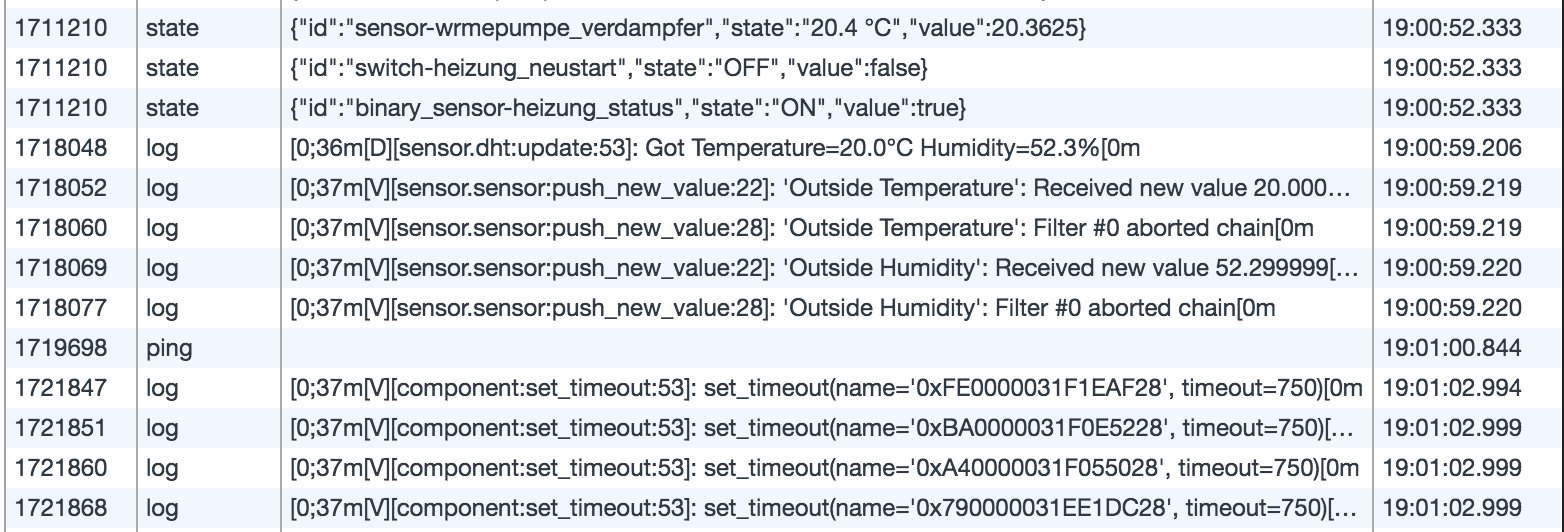
Additionally, each time a client connects to the event source the server sends out all current states so that the client can catch up with reality.
The payloads of these state events are similar to the REST API GET calls, except SSE includes
both name_id and id fields during the deprecation period (until 2026.8.0), while REST
responses only include id in the new format. I would recommend just opening the network
debug panel of your web browser to see what’s sent.
REST API
There’s also a simple REST API available which can be used to get and set the current state. All
calls to this API follow the URL schema /<domain>/<entity_name>[/<action>?<param>=<value>].
The domain is the type of the component, for example sensor or light. entity_name is
the name of the entity exactly as configured in YAML (including spaces and UTF-8 characters).
For entities on sub-devices, the URL schema is /<domain>/<device_name>/<entity_name>[/<action>].
URL Format and HTTP Methods
The HTTP method (GET or POST) disambiguates URL patterns:
| Segments | GET | POST |
|---|---|---|
2: /{domain}/{entity} | Main device state | N/A |
3: /{domain}/{X}/{Y} | Sub-device state (X=device, Y=entity) | Main device action (X=entity, Y=action) |
4: /{domain}/{device}/{entity}/{action} | Invalid | Sub-device action |
ℹ️ Note
4-segment URLs only support POST requests because the fourth segment is always an action, and actions require POST. A GET request to a 4-segment URL returns an error.
Examples:
/sensor/Temperature- A sensor named “Temperature” (GET returns state)/sensor/温度- A sensor with a Chinese name (UTF-8 supported)/switch/Living Room Light/turn_on- Turn on a switch (POST)/sensor/Garage/Temperature- A sensor on a sub-device named “Garage” (GET returns state)/light/Garage/Main Light/turn_on- Turn on a light on a sub-device (POST)
ℹ️ Note
Backward Compatibility
For backward compatibility, the old URL format using
object_id(lowercase with underscores) is still supported but deprecated and will be removed in ESPHome 2026.7.0. For example,/sensor/temperature_sensorwill still work but logs a deprecation warning. The new format using the entity name directly is recommended.
By creating a simple GET request for a URL of the form /<domain>/<entity_name> you will get a JSON payload
describing the current state of the component. This payload is equivalent to the ones sent by the
event source API.
You can get verbose information about the component by adding the parameter detail=all.
An example would be /select/My Select?detail=all.
To actually control the state of a component you need to send a POST request with a method like
turn_on. For example, to turn on a light, you would send a POST request to
/light/Living Room Lights/turn_on. Some components also optionally accept URL parameters to control
some other aspects of a component, for example the brightness of a light.
Sensor
Sensors only support GET requests by sending a request to /sensor/<entity_name>. For example sending
a GET request to /sensor/Outside Temperature could yield this payload:
{
  "id": "sensor/Outside Temperature",
  "state": "19.8 °C",
  "value": 19.76666
}- id: The id of the sensor. Format:
sensor/entity_nameorsensor/device_name/entity_namefor sub-device entities. - state: The text-based state of the sensor as a string.
- value: The floating point (filtered) value of the sensor.
For a sensor on a sub-device named “Garage”, sending a GET request to /sensor/Garage/Temperature
would yield:
{
  "id": "sensor/Garage/Temperature",
  "state": "15.2 °C",
  "value": 15.23
}
When using detail=all, the response includes additional fields including the device name:
{
  "id": "sensor/Garage/Temperature",
  "name": "Temperature",
  "device": "Garage",
  "state": "15.2 °C",
  "value": 15.23
}
Binary Sensor
Binary sensors have a similar payload and also only support GET requests. For example requesting
the current state of a binary sensor using the URL /binary_sensor/Living Room Status could
result in the following payload:
{
  "id": "binary_sensor/Living Room Status",
  "state": "ON",
  "value": true
}- id: The id of the binary sensor. Format:
binary_sensor/entity_nameorbinary_sensor/device_name/entity_namefor sub-device entities. - state: The text-based state of the binary sensor as a string.
- value: The binary (
true/false) state of the binary sensor.
Switch
Switches have the exact same properties as a binary sensor in the state reporting aspect, but they
additionally support setting states with the turn_on, turn_off and toggle methods.
Each of these is quite self explanatory. Creating a POST request to /switch/Dehumidifier/turn_on
would for example result in the component called “Dehumidifier” to be turned on. The server will respond
with a 200 OK HTTP return code if the call succeeded.
Light
Lights support quite a few more complicated options, like brightness or color. But first, to get
the state of a light, send a GET request to /light/<entity_name>, for example /light/Living Room Lights.
{
  "id": "light/Living Room Lights",
  "state": "ON",
  "brightness": 255,
  "color": {
    "r": 255,
    "g": 255,
    "b": 255
  },
  "effect": "None",
  "white_value": 255
}id: The id of the light. Format:
light/entity_nameorlight/device_name/entity_namefor sub-device entities.state: The text-based state of the light as a string.
brightness: The brightness of the light from 0 to 255. Only if the light supports brightness. If
stateisOFF, this can still report values like 255 in order to send the full state.color: The color of this light, only if it supports color.
- r: The red channel of this light. From 0 to 255.
- g: The green channel of this light. From 0 to 255.
- b: The blue channel of this light. From 0 to 255.
effect: The currently active effect, only if the light supports effects.
white_value: The white value of RGBW lights. From 0 to 255. Only if the light supports white value.
color_temp: The color temperature of the RGBWW light. Between minimum mireds and maximum mireds of the light. Only if the light support color temperature.
Setting light state can happen through three POST method calls: turn_on, turn_off and toggle.
Turn on and off have additional URL encoded parameters that can be used to set other properties. For example
creating a POST request at /light/Living Room Lights/turn_on?brightness=128&transition=2 will create transition with length
2s to the brightness 128 while retaining the color of the light.
turn_on optional URL parameters:
- brightness: The brightness of the light, from 0 to 255.
- r: The red color channel of the light, from 0 to 255.
- g: The green color channel of the light, from 0 to 255.
- b: The blue color channel of the light, from 0 to 255.
- white_value: The white channel of RGBW lights, from 0 to 255.
- flash: Flash the color provided by the other properties for a duration in seconds.
- transition: Transition to the specified color values in this duration in seconds.
- effect: Set an effect for the light.
- color_temp: Set the color temperature of the light, in mireds.
turn_off optional URL parameters:
- transition: Transition to off in this duration in seconds.
Fan
Fans are similar to switches as they can be turned on/off and toggled. In addition, if the
underlying fan supports it, fans in the web server also support the speed settings “low”,
“medium” and “high” and an oscillation setting. To get the current state of a fan, create a
GET request to /fan/<entity_name>.
{
  "id": "fan/Living Room Fan",
  "state": "ON",
  "value": true,
  "speed_level": 2,
  "oscillation": false
}- id: The id of the fan. Format:
fan/entity_nameorfan/device_name/entity_namefor sub-device entities. - state: The text-based state of the fan as a string.
- value: The binary (
true/false) state of the fan. - speed_level: The speed level of the fan if it’s supported. Value is between 1 and the maximum supported by the fan.
- oscillation: Whether the oscillation setting of the fan is on. Only sent if the fan supports it.
To control the state of the fan, send POST requests to /fan/<entity_name>/turn_on, /fan/<entity_name>/turn_off
and /fan/<entity_name>/toggle. Turn on additionally supports these optional parameters:
- speed_level: The new speed level of the fan. Values as above.
- oscillation: The new oscillation setting of the fan. Values as above.
Cover
Covers are again similar to switches whose two possible states are OPEN and CLOSED. They
can however be in an intermediate position, anywhere between 0.0 (fully closed) to 1.0
(fully open). They usually take some time to move from one position to another and can also be
stopped midway. An example GET request for /cover/Front Window Blinds might return:
{
  "id": "cover/Front Window Blinds",
  "state": "OPEN",
  "value": 0.8,
  "current_operation": "IDLE",
  "tilt": 0.5
}id: The id of the cover. Format:
cover/entity_nameorcover/device_name/entity_namefor sub-device entities.state:
OPENorCLOSED. Any position other than 0.0 is considered open.value: Current cover position as a float number. If the cover component does not support cover position reporting, then this will either be 1.0 when open or 0.0 when closed.
current_operation:
OPENING,CLOSINGorIDLE.tilt: (only if supported by this cover component) tilt angle from 0.0 to 1.0.
position: (only if supported by this cover component) Current cover position as a float number.
POST requests on the other hand allow performing actions on the cover, the available
methods being open, close, stop, toggle and set. The following parameters
can be used:
position: The target position for a
setcall. Theopenmethod implies a target position of 1.0,closeimplies a target position of 0.0.tilt: The tilt angle to set, if supported.
Creating a POST request to /cover/Front Window Blinds/set?position=0.1&tilt=0.3 will
start moving the blinds towards an almost completely closed position and a new tilt
angle.
Select
Selects can be set to an option and will return their current option. For example sending
a GET request to /select/House Mode could yield this payload:
{
  "id": "select/House Mode",
  "state": "party",
  "value": "party"
}
The detail parameter can be used to include available options in the response:
- detail: Set to
allto include a list of available options.
For example GET /select/House Mode?detail=all could yield this payload:
{
  "id": "select/House Mode",
  "name": "House Mode",
  "state": "party",
  "value": "party",
  "option": ["party","sleep","relax","home","away"]
}
POST requests on the other hand allow setting the select, the available
method is set. The following parameter can be used:
- option: The string option to set it to. Must be a valid option.
For example POST /select/House Mode/set?option=guest will set the select to guest.
Button
A button can be pressed from the REST API by sending a POST request to /button/Do Something/press.
Number
Numbers can be set to a value within their minimum and maximum range and will return their current value. For example sending
a GET request to /number/Desired Delay could yield this payload:
{
  "id": "number/Desired Delay",
  "state": "20.0000",
  "value": 20
}
POST requests on the other hand allow setting the number, the available
method is set. The following parameter can be used:
- value: The value you want to set the number to. The value must be within the minimum and maximum range of the number otherwise it will be ignored.
For example POST /number/Desired Delay/set?value=24 will set the number to 24.
Alarm Control Panel
The current state of an Alarm Control Panel can be retrieved by a GET request to /alarm_control_panel/My Alarm
which may yield:
{
  "id": "alarm_control_panel/My Alarm",
  "state": "ARMED_AWAY",
  "value": 2
}id: The id of the alarm control panel. Format:
alarm_control_panel/entity_nameoralarm_control_panel/device_name/entity_namefor sub-device entities.state:
DISARMED,ARMED_HOME,ARMED_AWAY,ARMED_NIGHT,ARMED_VACATION,ARMED_CUSTOM_BYPASS,PENDING,ARMING,DISARMING, orTRIGGERED.value: Current state as number. See the
AlarmControlPanelStateenum.
A POST request allows arming and disarming the alarm control panel. Available methods are arm_away, arm_home,
arm_night, arm_vacation and disarm. The code parameter may be given if the alarm control panel requires
a code for disarming or arming. When constructing your request, include this code as part of the POST data (or in
another non-URL channel supported by your client) and avoid placing it directly in the URL query string, as URLs may
be logged or stored in browser history.
A valid POST request will always return a 200 OK status response. This does not indicate that the alarm was armed or disarmed successfully. It only indicates that the command was received and processed by the web server.
